

Friday, April 30, 2010


More Cloth Flowers


Friday, February 19, 2010
Cloth Flowers
Now I can have beautiful flowers without having to wait for spring. Check out my Etsy shop for hair combs and bobby pins!


Tuesday, December 29, 2009
Clouds and Stars
My latest photoshop creations have been with clouds, stars, and color overlay. I used photoshop CS4 extended and created the stars on my own with a brush and blurring as I couldn't find a picture with bright enough stars.

I've also made a banner with a similar theme that's for sale in my Etsy shop here.


I've also made a banner with a similar theme that's for sale in my Etsy shop here.

Saturday, December 26, 2009
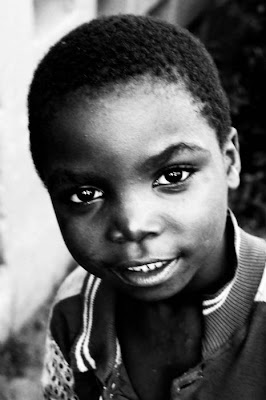
Tanzania 2009
I just recently went to Tanzania, Africa. The kids there were so much fun and I got lots of photos of them. These kids lead difficult lives, but live with a joy that is evident even through photographs.




Thursday, November 19, 2009
A Twist on Layer Masks
Here is a photo that I made in Photoshop Elements 6...

I just took the photo and duplicated it, and added color. Then I put it underneath the original that I had added and old photo texture to. Then, using layer masks, added the butterflies with a brush to expose the color image underneath.

I just took the photo and duplicated it, and added color. Then I put it underneath the original that I had added and old photo texture to. Then, using layer masks, added the butterflies with a brush to expose the color image underneath.
Saturday, August 15, 2009
Simple, Versatile Photo Enhancing Technique
All of this was done using Adobe Photoshop Elements 6.
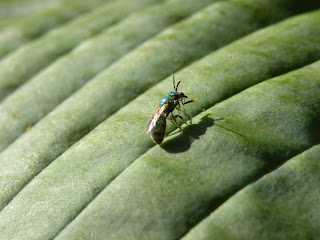
Here is the original photo:
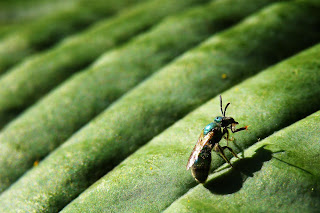
 And here is the end result:
Steps:
1. First I cropped the image. I really liked how the lines lead your eye to the bee, so I didn't want to cut too much of that out. I also really liked the shadow and the out-of-focus area at the top left corner of the photo. With that in mind, I cropped as much as I could out of the image.
2. I always sharpen my image. Even if it doesn't look like it needs it, I am always surprised by how much sharper my image is afterward. I went to the "Enhance" drop-down menu at the top of the screen and clicked on "Unsharp Mask". Normally I have the numbers set at: amount 175%, radius 2 pixels, and threshold 3 levels. But this photo is more detailed, so I set the numbers to: amount 150%, radius to 1.5 pixels, and threshold 4. It all really depends on what works for the individual photo.
3. The color was really good, so next I just adjusted the contrast (go to "Enhance" and click on "lighting" and then "Brightness/Contrast"). I really love contrast, so I increased the contrast to +100.
4. Next, I wanted to emphasize the bee more, so I used the selection brush and made a selection of the bee and it's shadow. I made sure to include lots of the surrounding leaf as well.
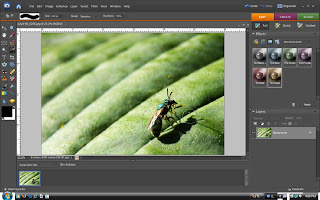 5. Then I pressed shift+ctrl+I to invert the selection. Now everything BUT the bee and the surrounding leaf was selected.
6. Next I went to "Select" clicked on "Refine Edge" and set the numbers to: Smooth 0, Feather: 250 px., and Contract/Expand: -71%.
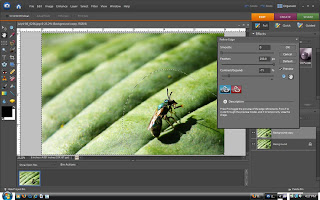
7. Next I clicked the bucket tool and set the numbers to Opacity 55%, Tolerance 255, and set the mode to "Soft Light". Then I clicked inside of the selected area.
8. Then just ctrl+D to deselect, and I have my enhanced image! I use this simple process on most of the photos that I enhance.
Something not clear? Have a question? Feel free to ask by leaving a comment below!
Here is the original photo:
 And here is the end result:
Steps:
1. First I cropped the image. I really liked how the lines lead your eye to the bee, so I didn't want to cut too much of that out. I also really liked the shadow and the out-of-focus area at the top left corner of the photo. With that in mind, I cropped as much as I could out of the image.
2. I always sharpen my image. Even if it doesn't look like it needs it, I am always surprised by how much sharper my image is afterward. I went to the "Enhance" drop-down menu at the top of the screen and clicked on "Unsharp Mask". Normally I have the numbers set at: amount 175%, radius 2 pixels, and threshold 3 levels. But this photo is more detailed, so I set the numbers to: amount 150%, radius to 1.5 pixels, and threshold 4. It all really depends on what works for the individual photo.
3. The color was really good, so next I just adjusted the contrast (go to "Enhance" and click on "lighting" and then "Brightness/Contrast"). I really love contrast, so I increased the contrast to +100.
4. Next, I wanted to emphasize the bee more, so I used the selection brush and made a selection of the bee and it's shadow. I made sure to include lots of the surrounding leaf as well.
 5. Then I pressed shift+ctrl+I to invert the selection. Now everything BUT the bee and the surrounding leaf was selected.
6. Next I went to "Select" clicked on "Refine Edge" and set the numbers to: Smooth 0, Feather: 250 px., and Contract/Expand: -71%.

7. Next I clicked the bucket tool and set the numbers to Opacity 55%, Tolerance 255, and set the mode to "Soft Light". Then I clicked inside of the selected area.
8. Then just ctrl+D to deselect, and I have my enhanced image! I use this simple process on most of the photos that I enhance.
Something not clear? Have a question? Feel free to ask by leaving a comment below!
Subscribe to:
Posts (Atom)